Guide
Text to Music AI: The Complete Guide to Generating Professional Audio with ToMusic
Published
3 weeks agoon
By
Admin
Finding the right audio is often the hardest part of content creation. Most creators are stuck between expensive licensing fees or generic stock tracks. Text to Music AI solves this by allowing you to generate studio-quality audio from scratch using simple descriptions.
Tools like ToMusic.ai have evolved beyond simple sound effects. They now offer two distinct, powerful engines: one for creating instrumental atmospheres and another for generating full vocal songs. This guide will clarify the difference between Text to Music and Text to Song AI, and show you exactly how to use them to create professional results.
Core Functions of ToMusic
To get the best results, you must first understand that ToMusic offers two different workflows. Using the wrong one is the #1 reason for bad results.
- Text to Music AI (Instrumental)
This function is designed for background audio. It focuses on “Vibe” and “Atmosphere.”
- Best for: Video background music, game soundtracks, podcasts, and meditation tracks.
- Key Feature: The AI ignores vocal synthesis and focuses on instrumentation, mixing, and looping.
- Text to Song AI (Vocal & Lyrical)
This is the advanced mode. It combines composition with vocal synthesis.
- Best for: Songwriters, custom jingles, birthday gifts, and demo tracks.
- Key Feature: You provide specific lyrics, and the AI generates a melody, harmony, and a human-like voice to sing your words.
How to Choose the Right Mode
Navigating the ToMusic interface requires knowing which buttons control these engines. Here is the precise workflow to get studio-quality output.
Scenario A: Creating Background Music (Simple Mode)
If you want an instrumental track, do not use the default settings blindly.
- Toggle the Mode: In the generator, locate the “Instrumental” switch. Turn this ON. If you leave it off, the AI might attempt to add “gibberish” vocals to your track.
- The Prompt Formula: For Text to Music AI, use the formula: [Mood] + [Genre] + [Key Instruments] + [Tempo].
- Weak Prompt: “Sad piano.”
- Strong Prompt: “Melancholic cinematic score, solo cello and soft piano, rainy atmosphere, slow tempo, reverb, high fidelity.”
Scenario B: Creating a Full Song (Custom Mode)
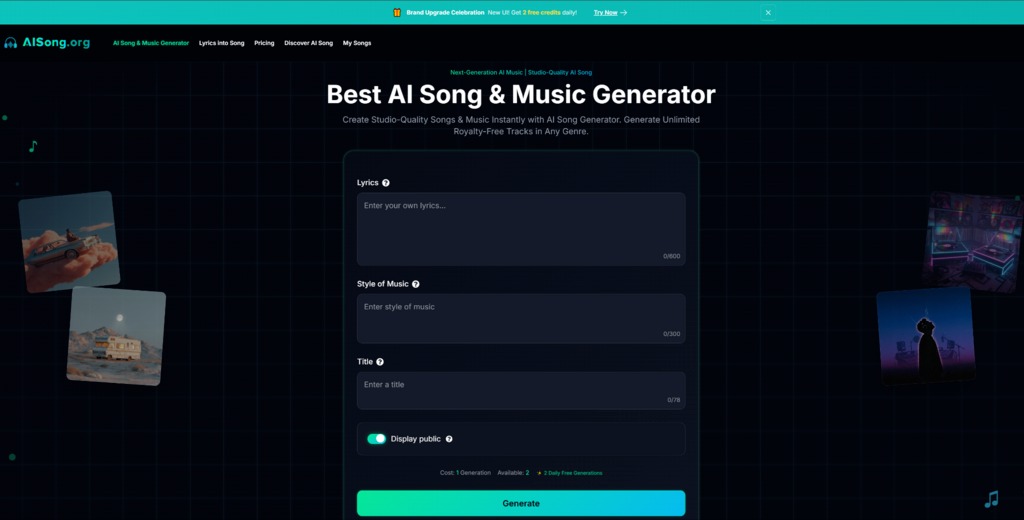
To use the Text to Song AI features effectively, you must switch the interface to Custom Mode. This unlocks the specific tools needed for songwriting.
- Input Your Lyrics: Paste your text into the “Lyrics” box. ToMusic supports structural tags which are critical for pacing:
- Use [Verse] for storytelling sections (lower energy).
- Use [Chorus] for the hook (higher energy/louder).
- Use [Bridge] for transitions.
- Define the Style: Be specific about the singer.
- Example: “Male vocals, gravelly voice, 90s Grunge Rock, distorted guitars, aggressive.”
- Title: Naming your track helps the AI contextually, but the Style prompt is more important.
The Specialized AI Music Generators for Every Need
One of the most powerful, yet often overlooked features of ToMusic is that you don’t always have to start from scratch. If you are struggling to write the perfect prompt, the platform offers a suite of specialized generators designed to handle specific scenarios instantly.
Instead of guessing which keywords will create a “dreamy” or “relaxing” vibe, you can simply choose a pre-built tool that is fine-tuned for that exact purpose.
1. For Writers and Storytellers
If you are looking to turn written content into audio, you don’t need to manually describe the emotion of your text.
- Story To Music Generator: Perfect for audiobooks or RPG campaigns, allowing you to input a narrative arc.
- Poems to Music & Quotes to Music: These tools are specifically calibrated to understand the rhythm and meter of poetry and short quotes, ensuring the music complements the cadence of the words.
2. For Wellness and Focus
Educators and wellness coaches often need background audio that is safe and non-distracting. ToMusic provides dedicated models for this:
- Calming Classroom Music Generator: Ideal for teachers who need low-stimulation background tracks for study time.
- Music to Sleep by Generator & Relaxing Music Generator: These bypass the need to fiddle with “tempo” settings, automatically generating slow, ambient soundscapes.
- Mood-Based Tools: From Anxiety To Song to Mood To Music, you can target specific emotional states directly.
3. For Content Creators & Viral Trends
Social media moves fast, and sometimes you need audio that fits a specific trend or aesthetic without hours of mixing.
- Vlog Music Generator: Instantly creates the kind of upbeat, copyright-safe background music used by travel and lifestyle YouTubers.
- Slowed and Reverb Generator: A massive trend on TikTok; this tool automatically applies that specific atmospheric effect to your tracks.
- Fun & Niche Tools: For truly experimental, tools like Brainrot To Christmas Music or Weather To Music allow for unique, creative content that stands out in a feed.
By using these specialized generators, you stop fighting with AI and start working with it. Whether you need a lullaby, a cinematic score for a story, or a trendy beat for a vlog, there is likely a dedicated button that does the heavy lifting for you.
How to Fix Common Text to Music AI Generation Errors
Even with advanced tools like ToMusic, AI doesn’t always get it right the first time. If your results sound strange, it usually comes down to three specific input errors. Here is how to fix them directly.
- The “Chipmunk” Vocal Effect (Speed Issues)
- The Problem: In Text to Song mode, the singer sounds rushed, unnatural, or like they are rapping too fast.
- The Fix: You have too many syllables in a single line. The AI tries to squeeze all your words into a 4-beat measure. Break long lines into two shorter lines in the lyrics box to give the AI singer room to breathe.
- “Phantom” Vocals in Background Music
- The Problem: You wanted an instrumental track, but the AI added gibberish or mumbling voices.
- The Fix: This happens when the AI gets confused by the genre (e.g., “Pop” usually has vocals). In Simple Mode, ensure the Instrumental Mode toggle is strictly turned ON. Additionally, add negative keywords like “No vocals, No voice” to your prompt.
- Abrupt Song Endings
- The Problem: The generated track cuts off suddenly while the melody is still playing.
- The Fix: The AI needs a signal to stop. In your Custom Mode lyrics box, type [Fade Out] or [Outro] at the very bottom. This instructs the model to resolve the chord progression and lower the volume gently.
Practical Use Cases
- YouTubers: Generate unique intros that avoid Content ID claims.
- Indie Developers: Create adaptive background loops for different game levels (e.g., “Ice World” vs “Lava Level”).
- Marketers: Use Text to Song AI to turn a brand slogan into a catchy 15-second jingle for TikTok ads.
Conclusion
Text to Music AI has bridged the gap between having an idea and producing a track. By distinguishing between the instrumental and lyrical modes on ToMusic.ai, and leveraging the community library to refine your prompts, you can create professional-grade audio in minutes. The technology is here—it’s time to start creating.
Call My Doctor Health Care LLC Sets a New Standard for Home Healthcare in Dubai
StableProxy Review: What Is It and Why You Might Need It in 2026
Recording Apps: Best Picks for Audio Capture in Screen Recording (2026 Guide)
7 Curb Appeal Improvements Your Home Might Be Crying Out For
Why Ahmedabad is a Must Visit City in India?
Trend vs Investment: Which Watch Features Stay Stylish for Years (Crystal, Case, Dial, Bracelet)
Corporate Reputation Management and the Cost of AI-Generated Errors
Hidden Costs of Economy Umrah Packages: A Breakdown of Extra Fees
RF PCB Solutions: How FastTurn PCB Powers High-Frequency Electronics with Precision
Why Bamboo Skewers Are Becoming Essential in the Modern Food Industry
Who Is Marlene Knaus? The Untold Story of Niki Lauda’s First Wife
Jacqueline Bernice Mitchell: The Inspiring Story of Jerry Rice’s Ex-Wife
Curious About JOI Database? Read This First Before You Click Anything
Mickey Middleton: The Untold Story of Bryan Cranston’s First Wife
Where Is Barbara Boothe Now? Inside Her Life After Larry Ellison
Wendy Lang: Meet the Therapist Married to Cenk Uygur
Alisande Ullman Today: What Happened After Her Divorce from Leslie Nielsen?
Where Is Noelle Watters Now? Jesse Watters’ Ex-Wife’s Life After Divorce
Should You Use Wooflix in 2025? Honest Review and Best Alternatives
Where Is Tanya Hijazi Now?: All About Rick James’ Former Wife
Call My Doctor Health Care LLC Sets a New Standard for Home Healthcare in Dubai
StableProxy Review: What Is It and Why You Might Need It in 2026
Recording Apps: Best Picks for Audio Capture in Screen Recording (2026 Guide)
7 Curb Appeal Improvements Your Home Might Be Crying Out For
Why Ahmedabad is a Must Visit City in India?
Trend vs Investment: Which Watch Features Stay Stylish for Years (Crystal, Case, Dial, Bracelet)
Corporate Reputation Management and the Cost of AI-Generated Errors
Hidden Costs of Economy Umrah Packages: A Breakdown of Extra Fees
RF PCB Solutions: How FastTurn PCB Powers High-Frequency Electronics with Precision
Why Bamboo Skewers Are Becoming Essential in the Modern Food Industry
Categories
Trending
-
Celebrity8 months agoWho Is Marlene Knaus? The Untold Story of Niki Lauda’s First Wife
-

Celebrity5 months agoJacqueline Bernice Mitchell: The Inspiring Story of Jerry Rice’s Ex-Wife
-

Entertainment6 months agoCurious About JOI Database? Read This First Before You Click Anything
-

Celebrity6 months agoMickey Middleton: The Untold Story of Bryan Cranston’s First Wife