
Connect with us

Guide

Recording Apps: Best Picks for Audio Capture in Screen Recording (2026 Guide)

Published

on

Recording Apps: Best Picks for Audio Capture in Screen Recording (2026 Guide)
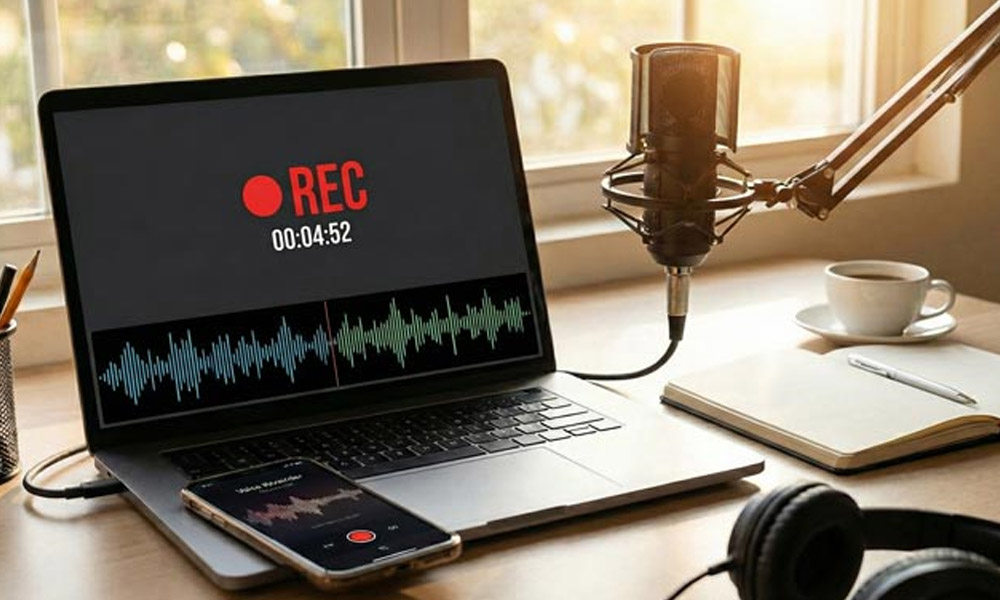
Screen recording continues growing in popularity across platforms. Tutorials require clear visual demonstrations with explanations. Gaming content needs commentary alongside gameplay footage. Business presentations combine slides with professional narration. Podcast creators record video alongside audio content. Quality audio separates amateur content from professional work. The right recording app makes this difference. This 2026 guide explores the best options available. Both Windows and Mac users find solutions here.

Why Audio Quality Matters

Poor audio ruins otherwise excellent screen recordings. Viewers forgive visual imperfections more than audio issues. Clear narration keeps audiences engaged throughout content. Background noise distracts from your message significantly. Inconsistent volume levels frustrate listeners quickly. Professional audio quality builds credibility with audiences.

Studies show viewers abandon content with poor audio. Even brief audio glitches disrupt viewer concentration. Crystal clear sound enhances information retention dramatically. The right free screen recorder prioritizes audio quality. Investing time in proper audio setup pays dividends.

Bandicam for Windows Users

Windows users need reliable recording software with audio. Bandicam leads the market for comprehensive audio capture. The software records system sounds and microphone simultaneously. Separate audio tracks enable independent volume adjustment. This flexibility proves invaluable during editing phases.

The free screen recorder includes advanced audio features. Real-time audio level monitoring prevents recording failures. Volume sliders adjust input levels precisely. Noise suppression reduces unwanted background sounds. These professional features come standard with installation.

Bandicam supports multiple audio input sources concurrently. Capture game audio, music, and voice simultaneously. The software handles complex audio routing effortlessly. Windows audio architecture integrates seamlessly with Bandicam. Recording quality remains consistent across different configurations.

Best Mac Screen Recording Options

Mac users require different solutions for optimal performance. Several excellent options exist for Apple computers. The built-in QuickTime player offers basic functionality. Screen recording includes audio from microphone input. System audio requires additional software configuration though.

Third-party mac screen recorder applications provide enhanced capabilities. These tools capture both system and microphone audio. Advanced options include audio mixing during recording. Mac-optimized software ensures smooth performance throughout. Professional content creators benefit from these enhanced features.

Popular Mac recording apps support high-quality audio formats. Lossless audio capture preserves maximum quality. Export options accommodate various podcast and video platforms. Integration with Mac ecosystem simplifies workflow significantly.

Essential Audio Settings

Proper audio configuration ensures optimal recording results. Sample rate selection affects final audio quality. Forty-eight kilohertz works well for video content. Higher rates increase file size without noticeable improvement. Bit depth affects dynamic range in recordings.

Audio format selection impacts both quality and compatibility. AAC compression balances quality with file efficiency. The free screen recorder handles these settings intelligently. Default configurations work well for most users. Advanced creators can customize settings for specific needs.

Stereo recording captures spatial audio information effectively. Mono suffices for simple voice narration content. Consider your content type when selecting channels. Gaming and music content benefits from stereo capture.

Microphone Setup and Configuration

Quality microphones dramatically improve recording audio clarity. USB microphones offer simple plug-and-play convenience. XLR microphones provide professional broadcast quality. Audio interfaces enable multiple microphone configurations. Choose equipment matching your budget and requirements.

Microphone positioning affects recording quality significantly. Position microphones six inches from your mouth. Angle slightly off-axis to reduce plosive sounds. Pop filters eliminate unwanted breath noises effectively. The screen recorder for Mac captures optimized microphone input.

Test microphone levels before important recording sessions. Speak at your normal volume during testing. Adjust input gain to prevent distortion peaks. Aim for levels between negative twelve and six. This range provides clean audio with headroom.

System Audio Capture Techniques

Capturing system audio presents platform-specific challenges. Windows users find this straightforward with Bandicam. The software captures all system sounds automatically. Game audio, music, and notifications record seamlessly. No additional configuration or routing becomes necessary.

Mac users need specialized tools for system audio. Virtual audio routing software creates internal pathways. These tools redirect system audio to recording applications. The screen recorder for Mac solutions handle this elegantly. Setup requires initial configuration but runs automatically afterward.

Balance system audio with microphone input carefully. Prevent game audio from overwhelming voice narration. The free screen recorder includes mixing capabilities. Real-time monitoring helps achieve perfect balance.

Troubleshooting Audio Problems

Audio issues occasionally disrupt recording sessions unexpectedly. Missing audio tracks indicate incorrect source selection. Verify input device settings before recording begins. Driver updates resolve compatibility problems frequently. Restart recording software after configuration changes.

Echo or feedback suggests monitoring loop problems. Disable speaker output during microphone recording sessions. Use headphones to prevent audio feedback loops. The screen recorder for Mac includes monitoring options.

Distorted audio indicates levels set too high. Reduce input gain to prevent clipping distortion. Background noise requires better microphone positioning. Consider acoustic treatment for recording spaces.

Professional Audio Tips

Professional results require attention to environmental factors. Record in quiet spaces away from noise sources. Turn off fans, air conditioning during sessions. Close windows to reduce external sound intrusion. These simple steps dramatically improve audio quality.

Consistent audio levels maintain professional presentation quality. Normalize audio during post-production editing phases. Compression reduces dynamic range for comfortable listening. The free screen recorder creates clean source material.

Voice warm-up exercises improve narration quality significantly. Speak clearly and maintain consistent pacing throughout. Hydration prevents mouth clicks and dry throat. Professional presentation elevates content quality perception.

Conclusion

Audio quality defines professional screen recording success. The right recording app provides essential capabilities. Windows users benefit from Bandicam’s comprehensive features. Mac users find excellent alternatives for their platform. Both ecosystems support professional audio capture today.

Invest time learning proper audio configuration techniques. The screen recorder for Mac and Windows options excel. Quality equipment improves results but technique matters more. Practice and refinement develop professional audio skills. Start creating exceptional content with proper audio today.


Continue Reading

Categories

Trending